
Build a SharePoint Copilot Dashboard With a Single Prompt

Have you ever been asked for a dashboard and immediately thought about how time consuming it would be to create? In this week’s Power Hour, I built an instant SharePoint Copilot dashboard HTML file straight from a regular SharePoint list. It has interactive filters, four kinds of charts, live search, and clickable rows that open a details popup. No Power BI license. No programming required.

This SharePoint Copilot dashboard is one of my favorite things I’ve demoed all year! Let’s dig in, with this post and associated video.
🎯 What a SharePoint Copilot dashboard actually is
A SharePoint Copilot dashboard is simply an HTML file that Copilot generates and saves into a library on your site. Then you embed that file on a page, or you link straight to it. Here’s the part I love: the dashboard has live list data. You don’t need to re-create it when your data changes.
✅ What you need first
You need a Microsoft 365 Copilot license to build a SharePoint Copilot dashboard. Keep in mind that this is still in preview, so the admin controls, usage limits, and which environments are supported — may change over time. Microsoft keeps the current details on Microsoft’s Get started with Copilot in SharePoint page.
The people viewing your dashboard don’t need a Copilot license at all. Only the person doing the prompting needs one. Also, as of right now, this doesn’t consume Copilot credits. It does have usage limits, which you can read about in the link above.
🚀 How to build a SharePoint Copilot dashboard from a list
Here’s the exact process I used with my Purchase Requests list.
1. Go to your SharePoint list. Click the Copilot button on the right side of the screen. You can type in the small prompt box, or open the full chat pane.

2. Write your prompt. Mine was:
Create an interactive dashboard with at least four different types of charts and a dynamic dropdown, to display the most important information about this Purchase Requests list.
3. Open the file. Copilot gives you a link when it finishes, after about 5 minutes. It usually lands in Site Assets or Documents, though the location varies a bit.
4. Iterate and admire your work. Seriously, the first one is a jaw-dropper. You can keep writing more prompts to fine-tune your dashboard. So many possibilities!

One nice detail: you don’t have to start from inside the list. I also ran a prompt from the site homepage and named my list directly. Additionally, you can reference multiple lists in one prompt when you want several lists’ data together, maybe all part of one of your business processes.
🔄 Your SharePoint Copilot dashboard uses live data
I changed two Finance items in my list to a different category. Then I clicked the Refresh button on the dashboard. Sure enough, Finance dropped from five requests down to three. No new file required.
So when someone opens the dashboard for the first time, they see current data automatically. If it’s already open, they just click refresh.
📁 Build a SharePoint Copilot dashboard from files
Lists aren’t your only option. You can point Copilot at a file, a set of files, or an entire library.
During the show, I built one from a (Copilot generated demo) CSV of training registrations. My prompt asked for revenue by course and category, registrations over time, cancellation and waitlist rates, and a regional breakdown. Then I asked for filters by region, delivery format, and marketing channel.
The resulting SharePoint Copilot dashboard was gorgeous! It included a live search box that filtered as I typed, a date picker, a filter summary bar showing my active selections and record count, and a bonus light/dark theme toggle. See the “training registration dashboard” screenshot later in this post.
Now, a small rant. Every time I see a spreadsheet parked in SharePoint, I evaluate whether it should be a list instead. Lists give you per-item version history, accountability for who edited which row, and the datasheet view right there. So before you point Copilot at that Excel file, ask yourself whether the data belongs in a list.
🎨 Prompt ideas to improve your SharePoint Copilot dashboard
Building the first version is only step one. The magic happens when you iterate. Just keep prompting until it looks right. Here’s a downloadable image for you to use as a reference:

Here are ideas I shared during the episode:
- Add a row of summary cards — total budget, total spent, projects at risk, projects blocked
- Add a filter bar with a reset button
- Add search and drill-down
- Restyle it and specify your exact color palette
- Add a risk spotlight showing open risks
- Build an overdue view for help desk data
- Create separate dashboards: leadership summary, owner accountability, department comparison, milestone timeline
- Make each row clickable to open a details popup
One important tip. When you iterate, name the file explicitly in your prompt. I say “on the Project Portfolio Executive Dashboard, add a row of summary cards.” Also, you can run your iteration prompts from three different places: the list, the SharePoint page, or the HTML file itself. Copilot is surprisingly good at understanding where you are.
🔗 Link each row back to the SharePoint list item
This one took my SharePoint Copilot dashboard from pretty to genuinely useful.
Grab the URL of a list item’s display form or edit form. It looks like this (DispForm, EditForm, or ViewForm):
https://yoursite/Lists/PurchaseRequests/EditForm.aspx?ID=#
Then tell Copilot: use this URL pattern and add a link on each item that opens that record. It swaps in the # for a correct ID for every row. Now people click straight through from the chart to the actual item.
📌 Embed the dashboard on a SharePoint page
Ready to show off your SharePoint Copilot dashboard? Follow these steps.
1. Open the HTML file, click the … menu, and choose Embed.
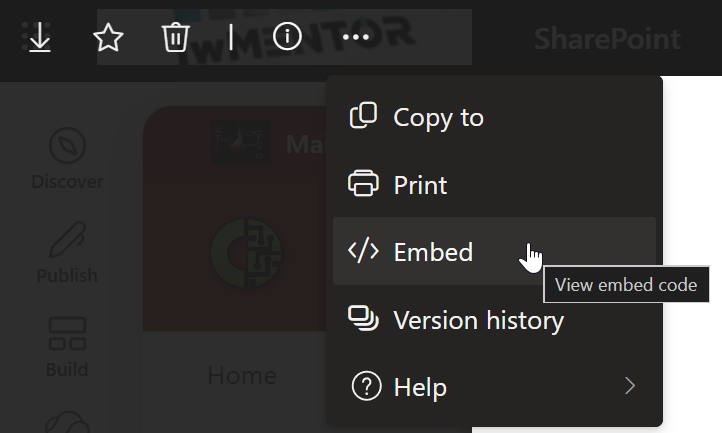
2. Click Copy embed code.
3. Edit your SharePoint page and add the Embed web part.

4. Paste the code into the panel on the right.
5. Leave “resize to fit the page” on, then adjust the height in the embed code until the scroll bar disappears. I landed on 800 pixels for this one.

🔘 Let people add new items
Your SharePoint Copilot dashboard displays data beautifully, but it can’t collect it. So pair it with a SharePoint form.
In your list, create a new form from the Forms button at the top of any list or library, choose your fields, and copy the link. Then add that link to a Button web part or a Quick Links web part on your page. I set mine to open in a new tab. Here is my other post about that type of one-way form: SharePoint Modern Forms, No Permissions Needed – WonderLaura @iwmentor – Laura Rogers
🔒 How permissions really work
I gave my test user read-only access to the Project Portfolio list. She could see the dashboard just fine. Next, I removed her list permissions entirely. After that, the dashboard data would no longer load for her.
That’s exactly the behavior you want. Your SharePoint Copilot dashboard respects the underlying list permissions, so nobody sees data they shouldn’t. Here’s the interesting twist though. The no-access user could still submit the form with zero list access. So you can let people contribute data without letting them browse it.
🎁 Bonus: a button that runs a Copilot prompt
The Button web part now has a Copilot prompt option. I set mine to: Review the Project Portfolio list, filter for projects assigned to me, and summarize everything that changed this week into a live interactive dashboard.
Clicking the button opens the Copilot pane and runs the prompt. Fair warning: it generates a brand new dashboard every single time. Also, that person running the prompt does need a M365 Copilot license.

💡 Why this matters
Building filters like these in a Power Apps canvas app gallery takes all day. I’ve done it many times. A SharePoint HTML dashboard takes one prompt and a few iterations.
Executives always want pretty dashboards, and they rarely know what data they actually want on them. Now you can iterate with them in real time instead of rebuilding from scratch.
Want to go deeper on reporting? My Power BI for Power Users course walks business users through building a full report with no code, including a full module on Copilot in Power BI. Everything lives at iwmentor.com, and the Ultimate plan includes every course plus a live Q&A with me every three weeks.
Power Hour airs Wednesdays at 11am Central. Come join the live Teams chat — that’s where your questions turn into live demos.
Here is the video:
BONUS
Here’s a dashboard I created for fun. Even if you don’t have data to report on, in your SharePoint site, this is a dashboard that just shows all of the lists and libraries on your site, linking to each one!
Prompt: “Create an interactive dashboard showing all of the lists and libraries on this site, in a beautiful and creative layout, with icons.”

So what’s the first list you’re going to turn into a dashboard? Tell me in the comments.
No. Only the person creating or re-prompting the dashboard needs one.
Not at all. That’s the whole point — this runs on your Microsoft 365 Copilot license instead.
It pulls current data every time someone opens it. If it’s already open, click Refresh.